
Inside the portal
Every screen, one by one.
Fourteen screens, on the laptop and on the phone. This is what you get after you log in.
One login for all of it
Your properties, your leads, your shared links and your website. Not four different apps.
Made for the phone first
Add a property or answer a lead standing outside the building. Nothing to install.
English, Gujarati or Hindi
Your portal opens in the language you choose, and so does your website.
Your staff, their own login
Invite them by email. Choose Can edit or Read only. Remove them any time.
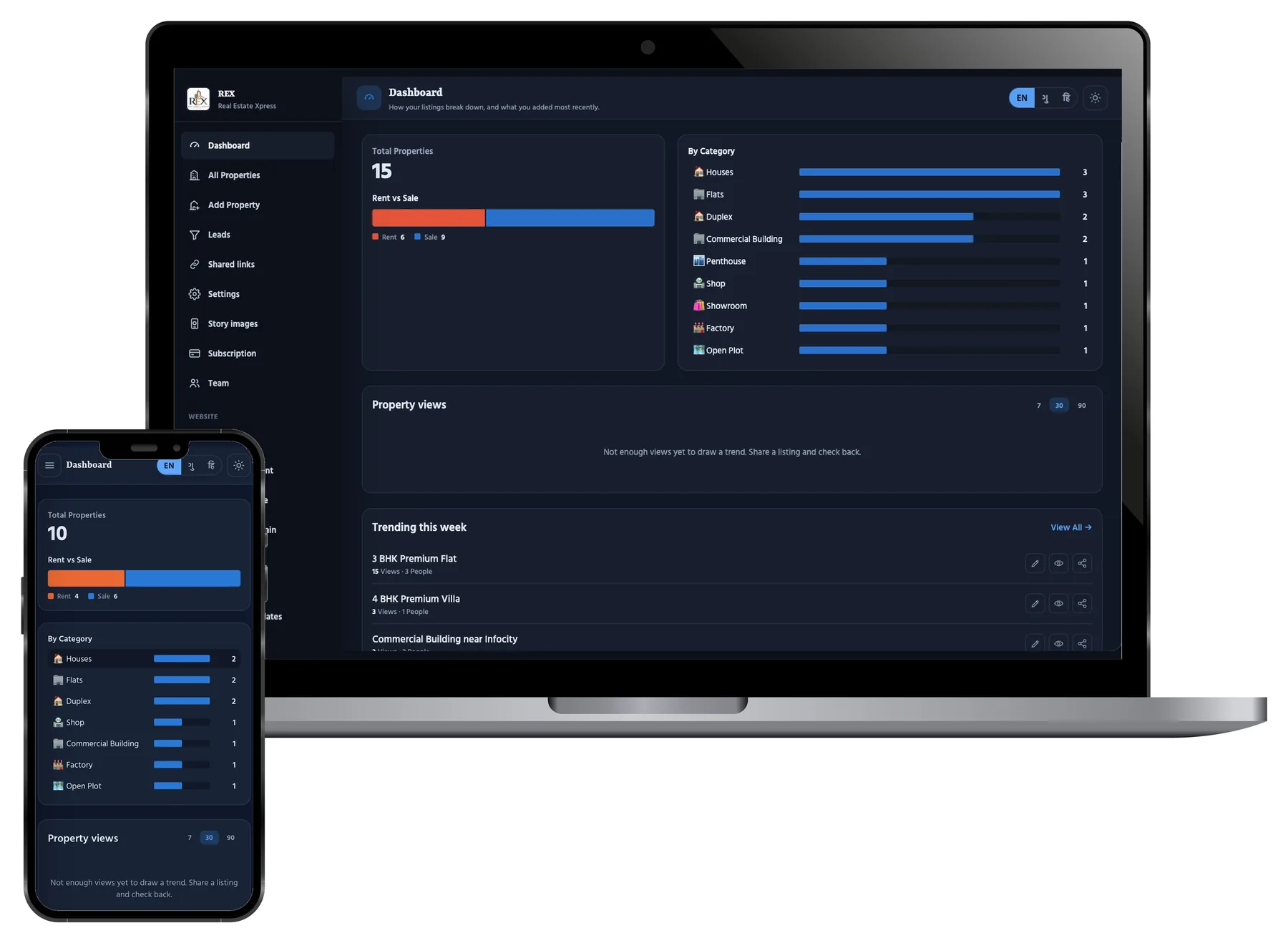
Dashboard
See everything at one look
How many properties you have. How many for rent, how many for sale. How many in each type. Below that, how many people saw your properties this week, this month, this quarter.
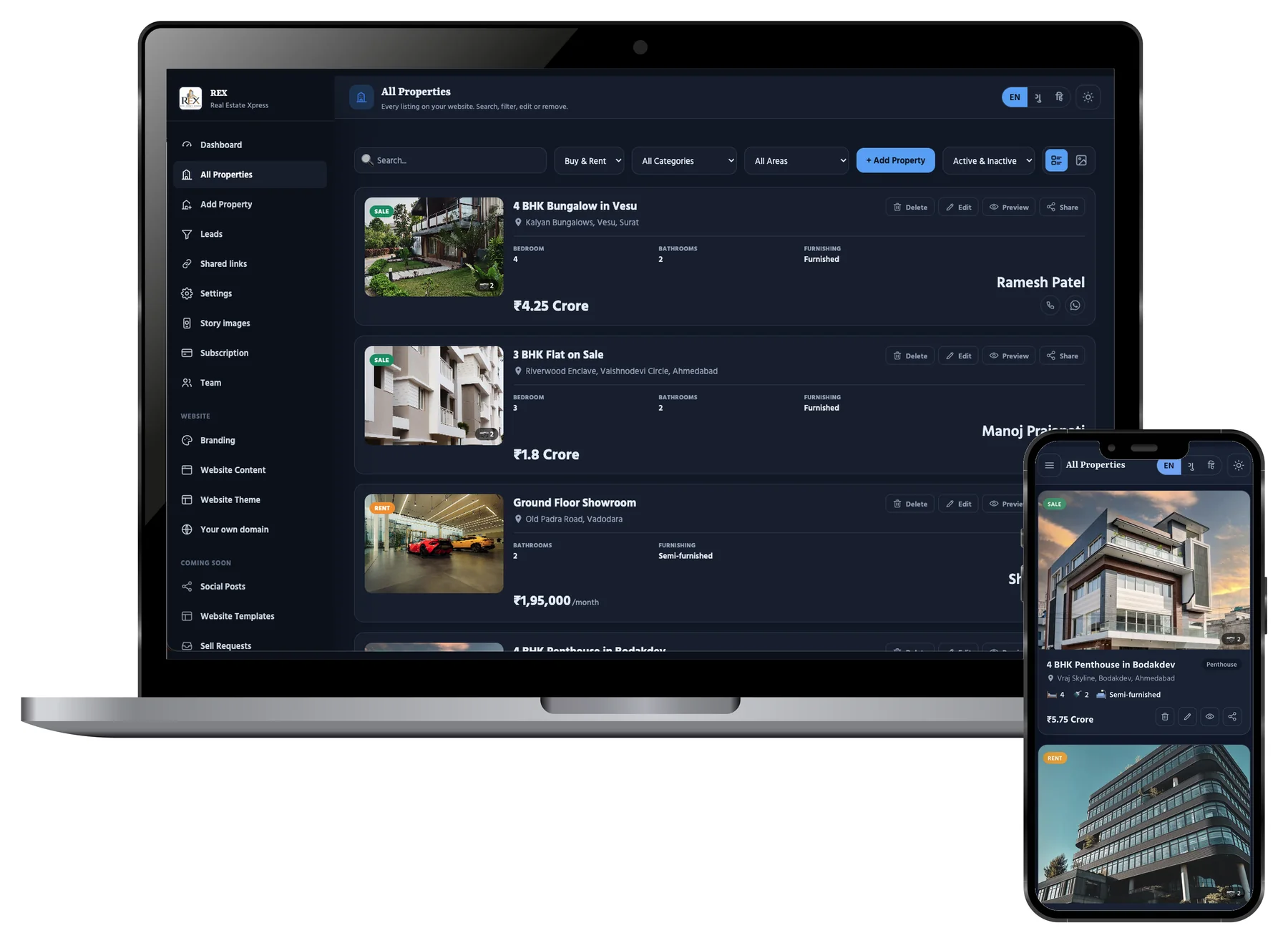
All Properties
Every property you have, in one list
Search by name or area. Filter by rent or sale, by type, by city. Edit it, look at it, or share it from the same row.
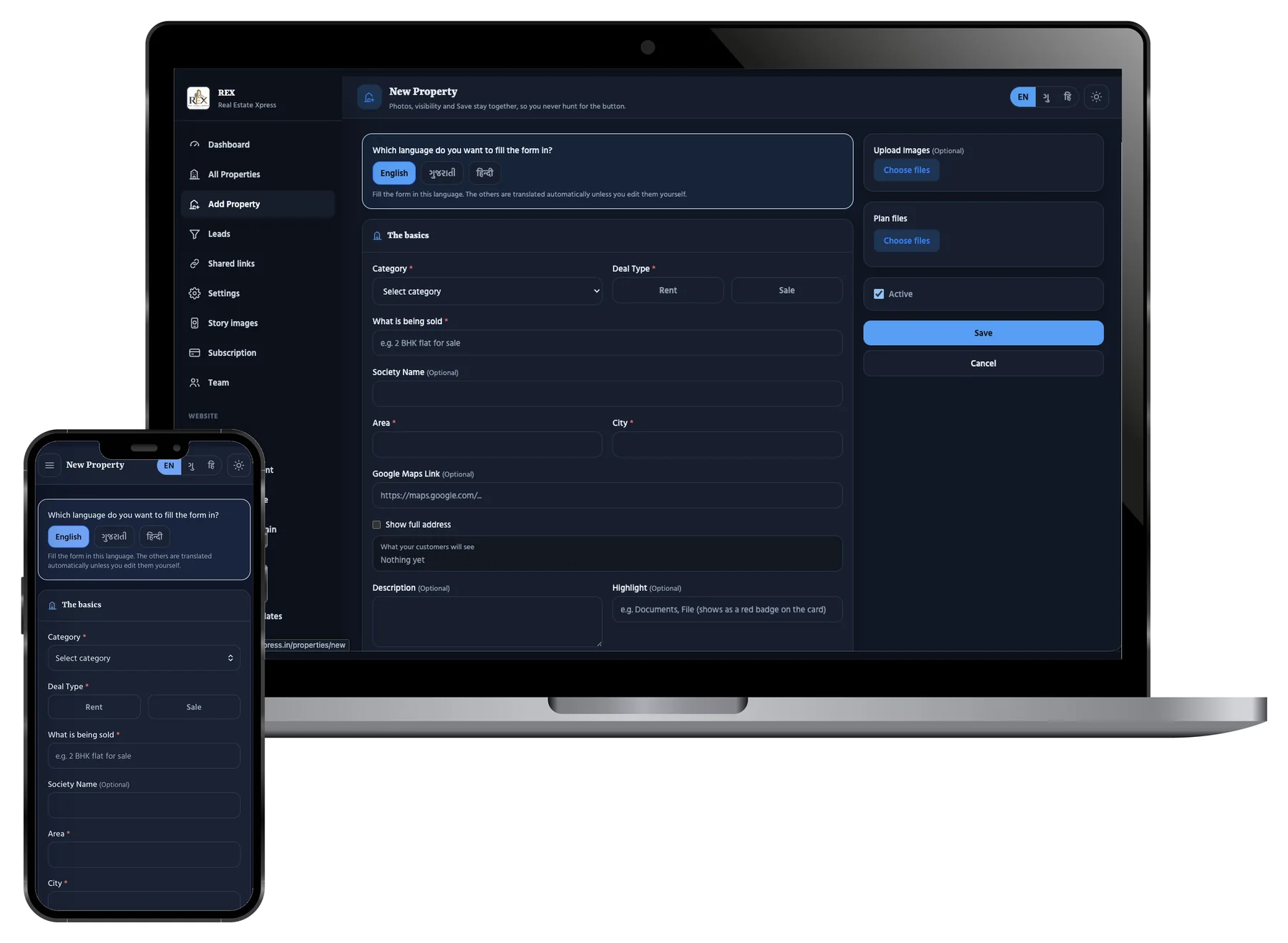
Add Property
Add a property in one minute
Choose the language you want to type in. The other two fill by themselves. Then category, rent or sale, society name and area. It asks only what that property needs.
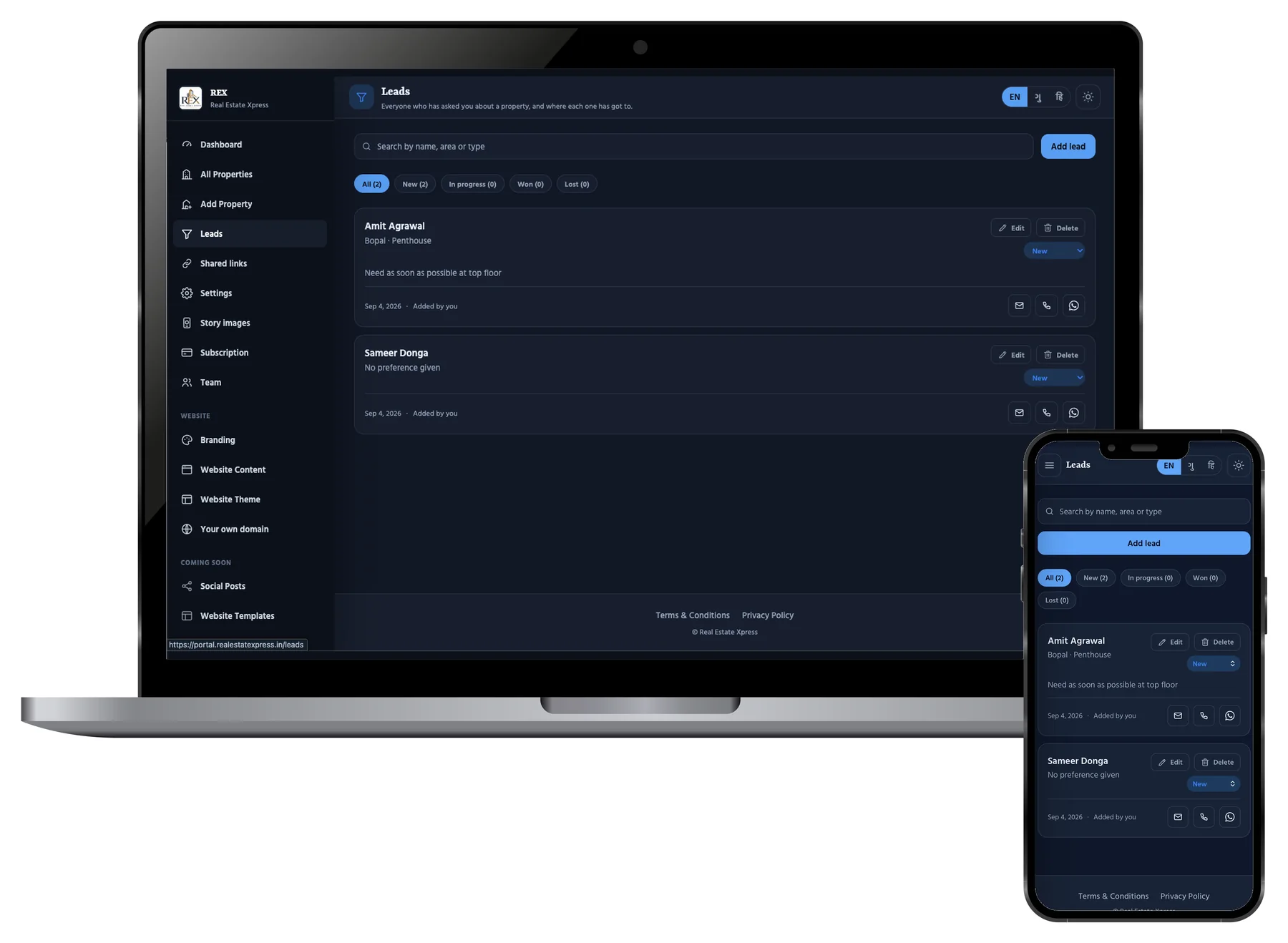
Leads
All your enquiries in one list
From your website, and the calls you took yourself. Mark them new, in progress, won or lost. Call, WhatsApp or email him from the same row.
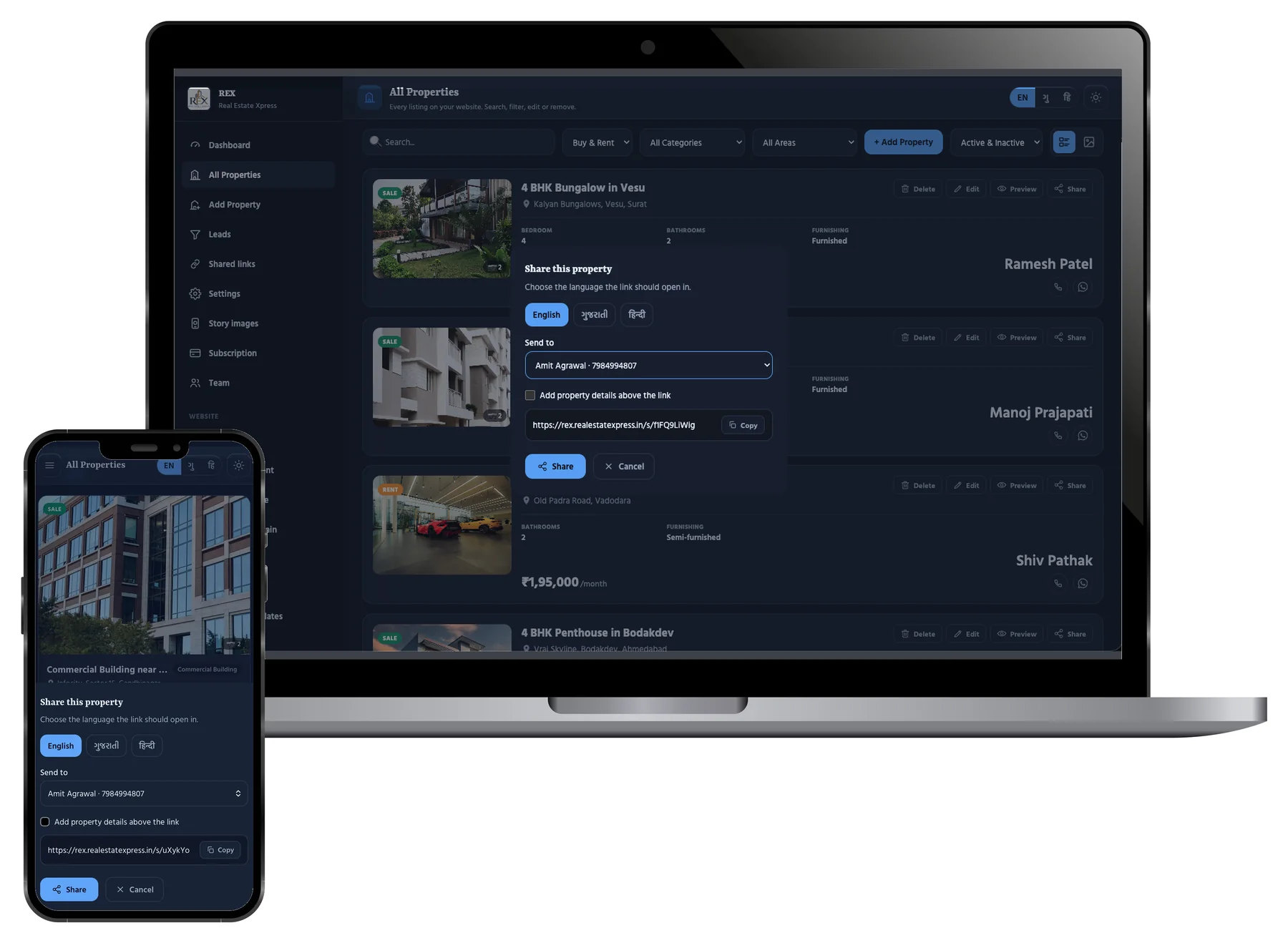
Share
Make a link for one buyer
Choose the language the link will open in. Choose the buyer from your leads. Copy the link and send it. Every open of that link is now joined to him.
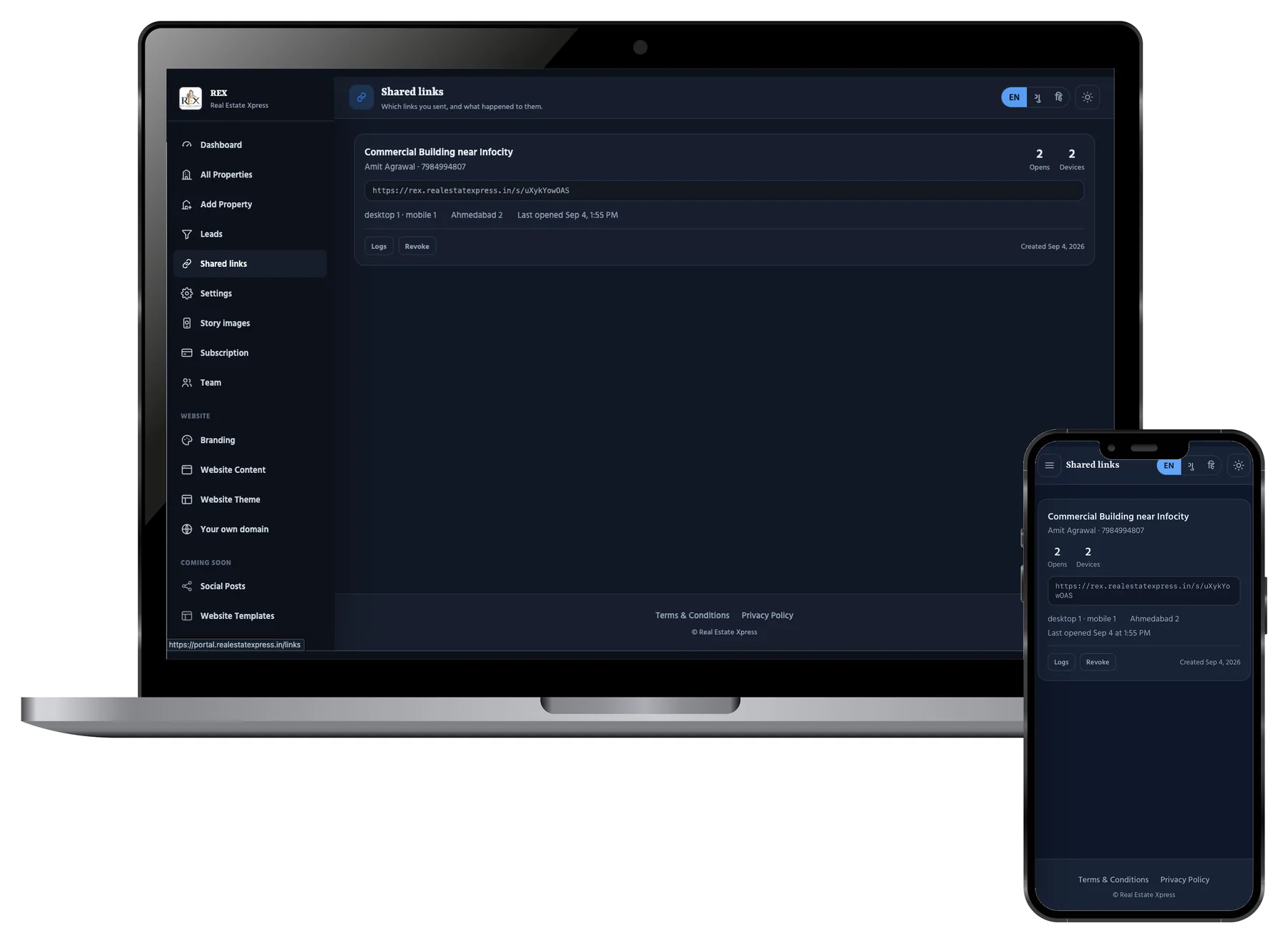
Shared Links
See what happened to every link
How many opens. How many different phones. Which city. When it was opened last. Stop a link any time — the record stays with you.
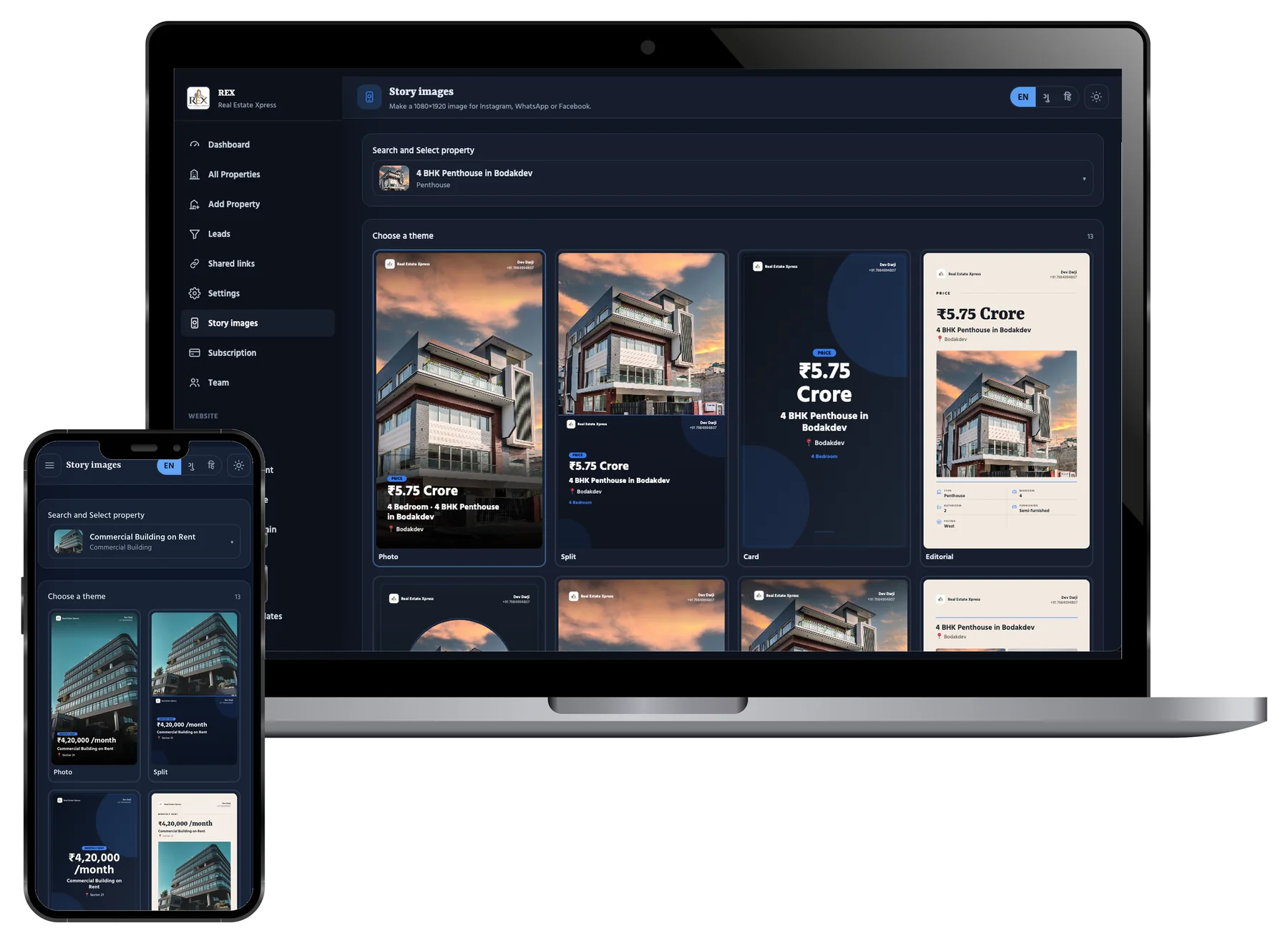
Story Images
An Instagram post in three taps
Choose the property. Choose one of 13 designs. Save the image. Price, size, area and your logo are already inside it.
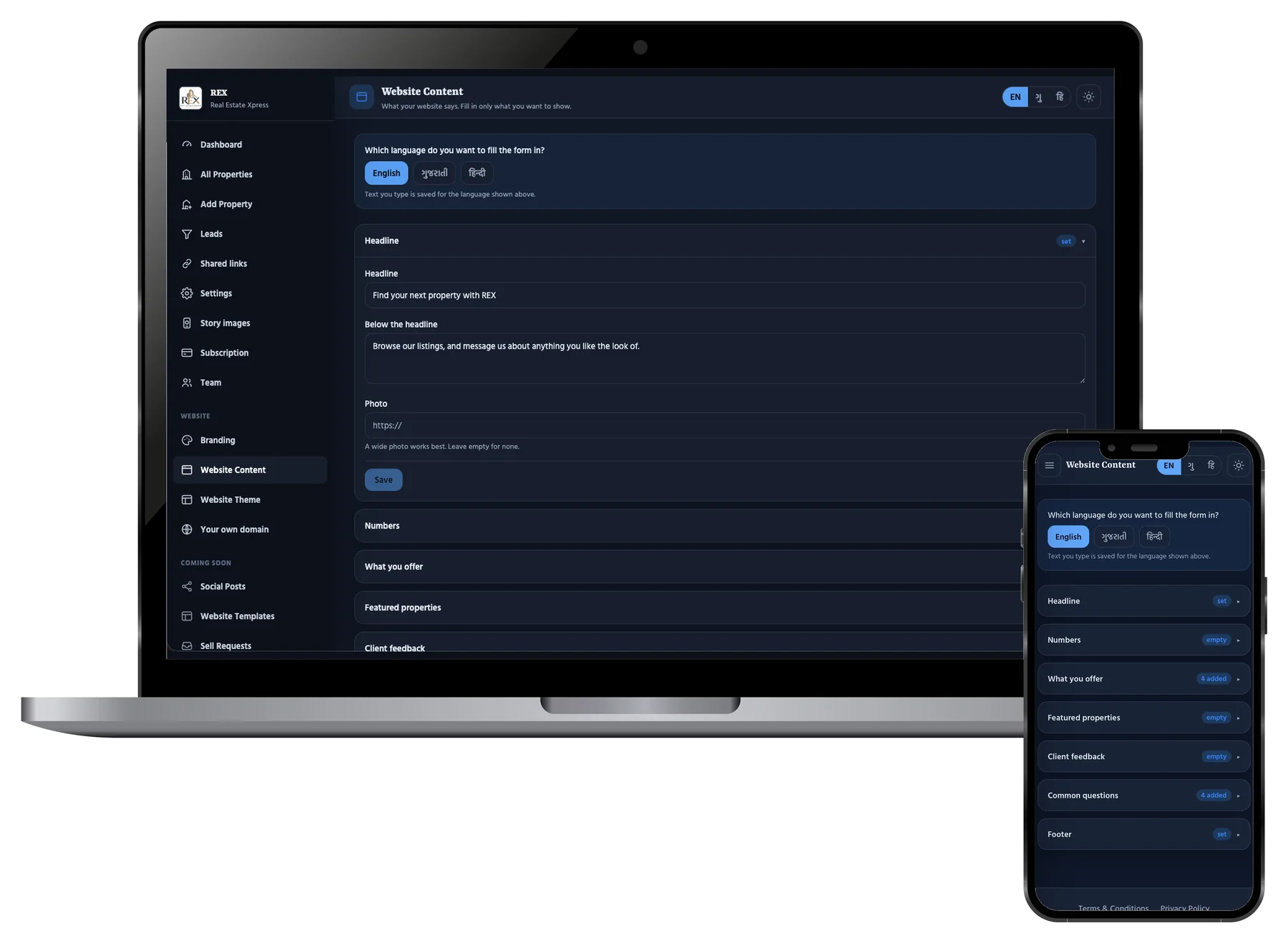
Website Content
Your website, in your words
The headline. Your numbers. What you do. Which properties come first. Client feedback. Common questions. Write it in the language you want.
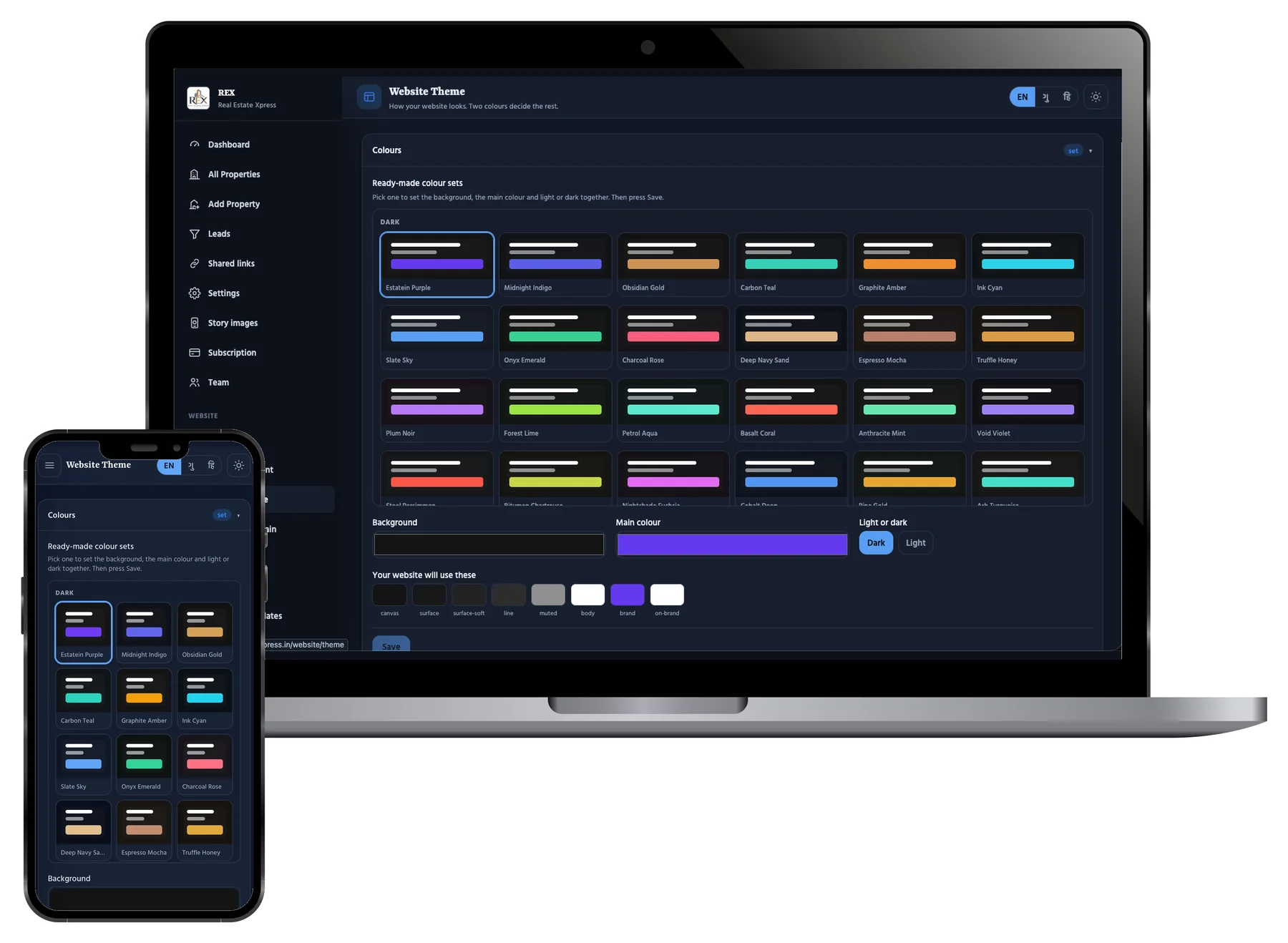
Website Theme
100 ready colour sets
One tap sets the background, the main colour, and light or dark together. Every box you see is a real preview of your website.
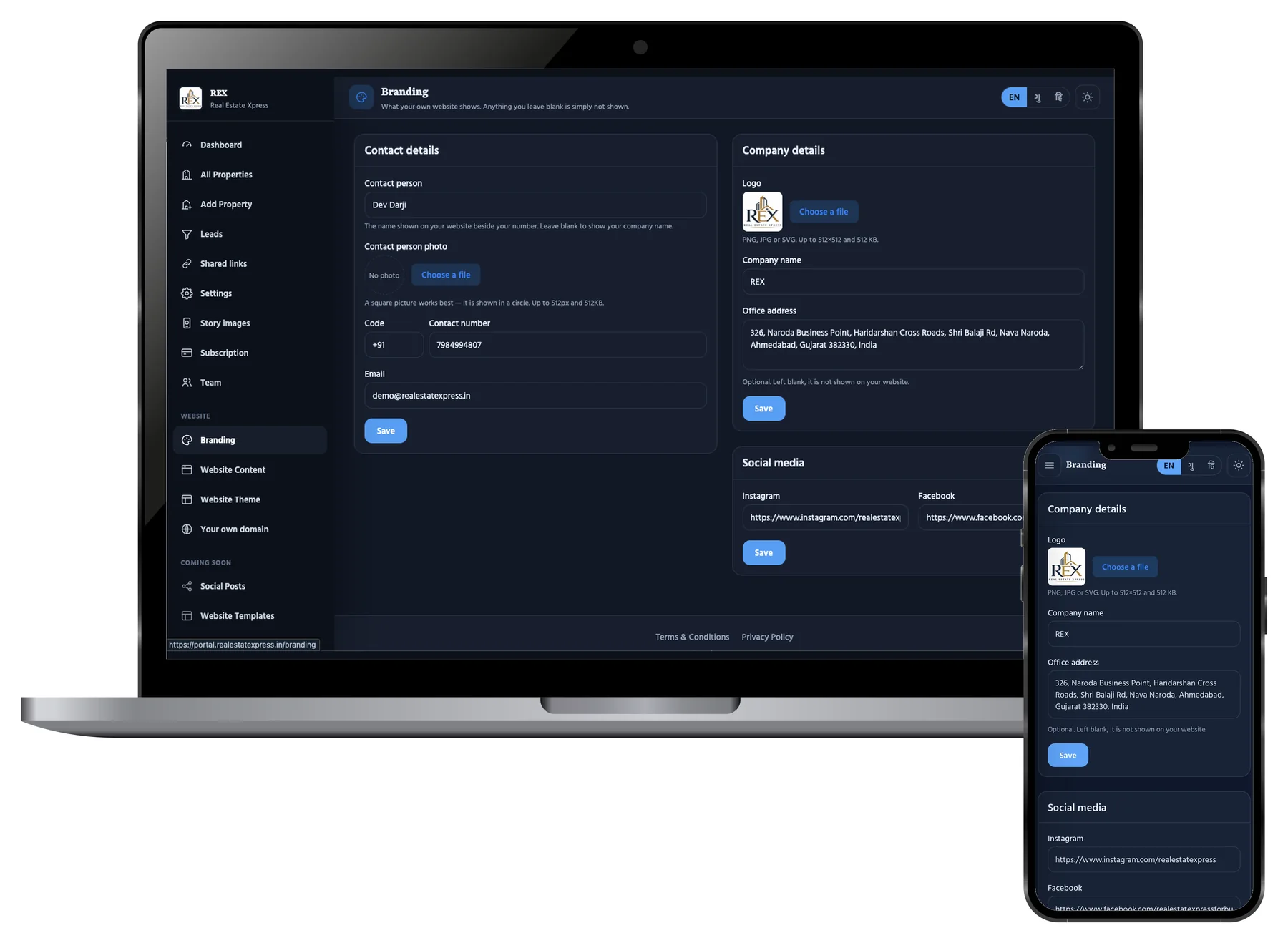
Branding
Your logo, your name, your links
Your logo and company name. Your office address. Your Instagram and Facebook. And the person a buyer sees next to your number.
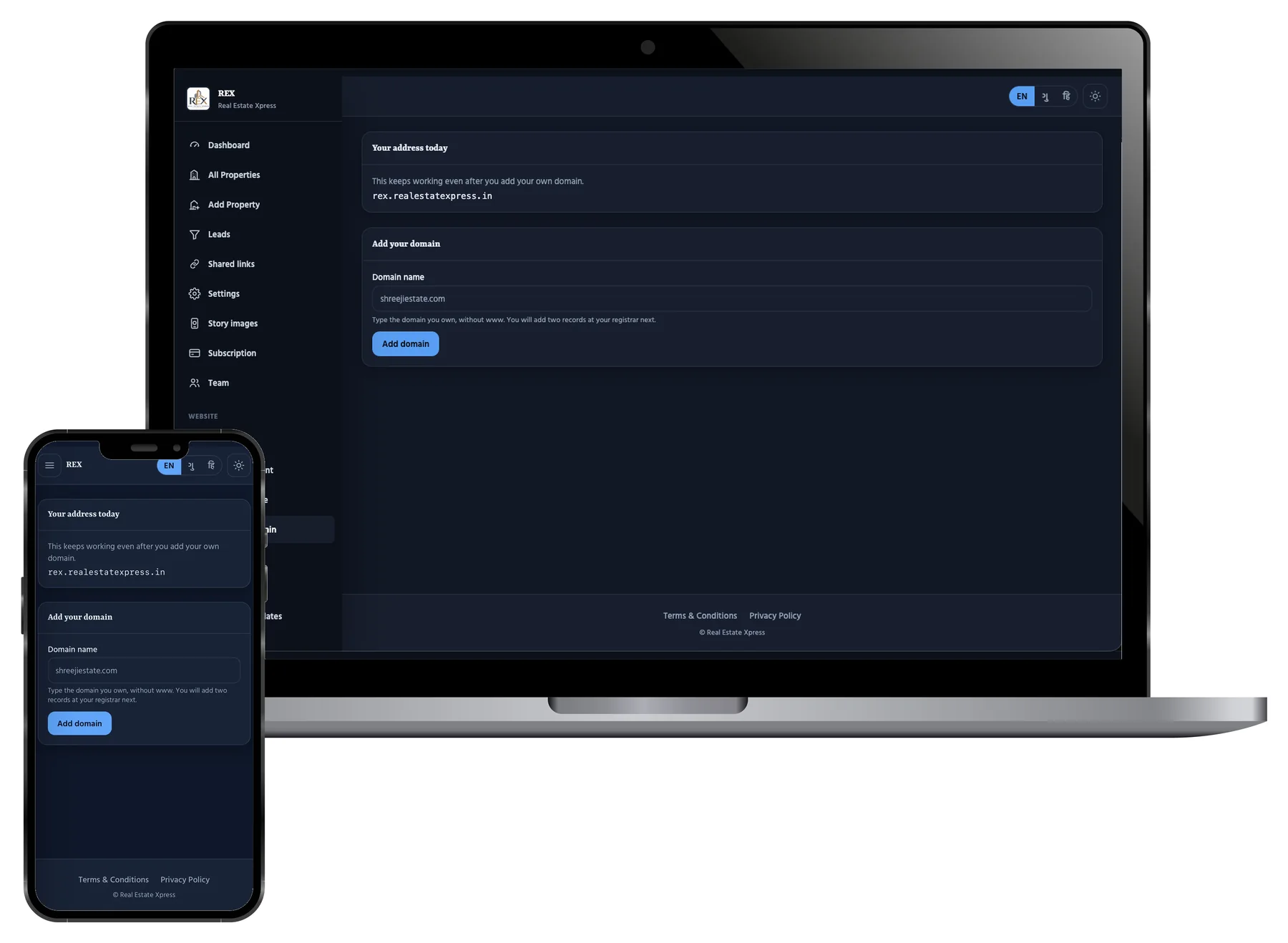
Domain
Move it to your own domain
Add two records at your domain company. The https lock is made for you, usually in one hour. Your old address keeps working.
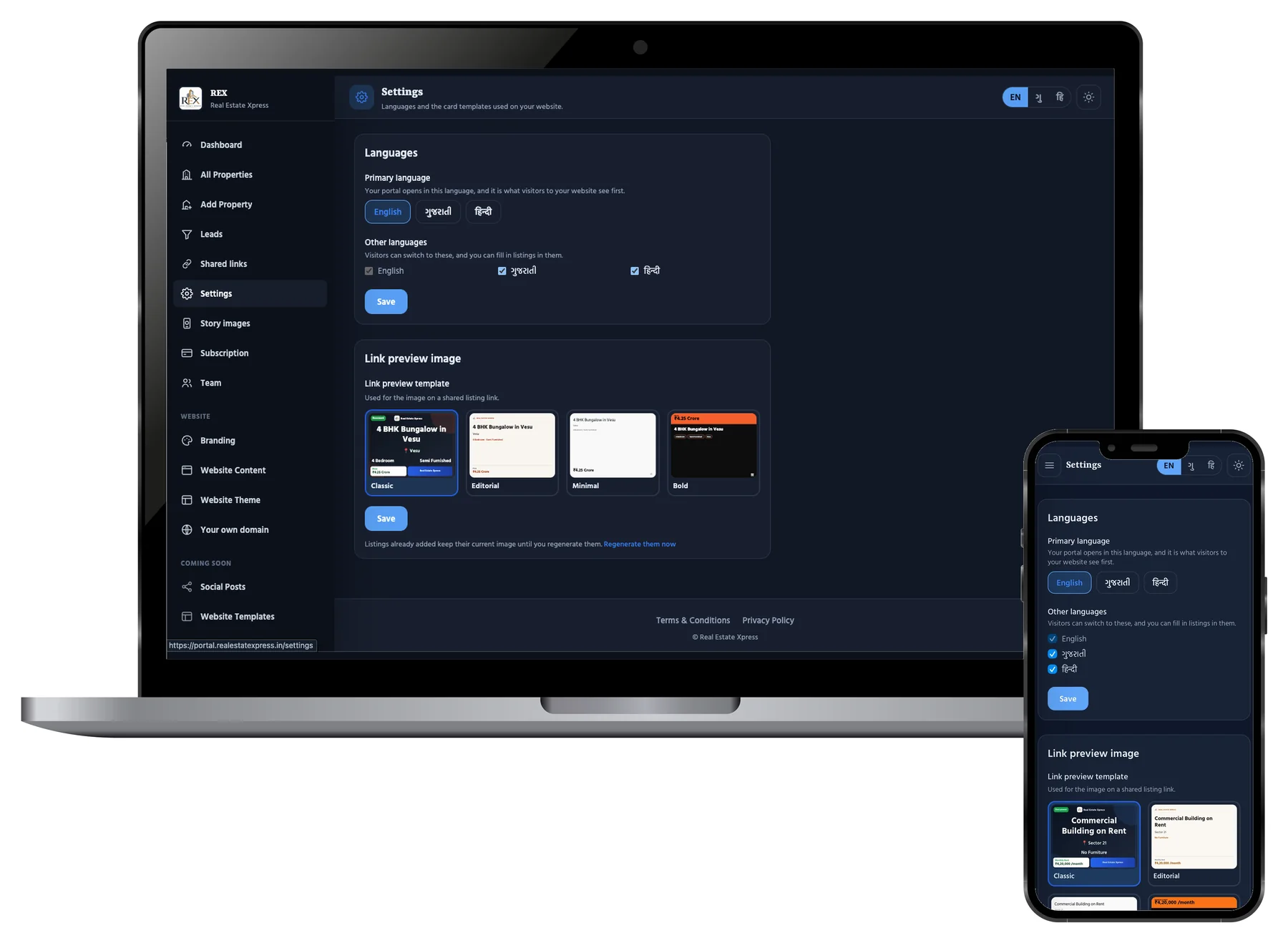
Settings
Language, and how your links look
Choose which language your portal opens in. Choose which languages a visitor can change to. Below that, choose the design of the image on every shared link.
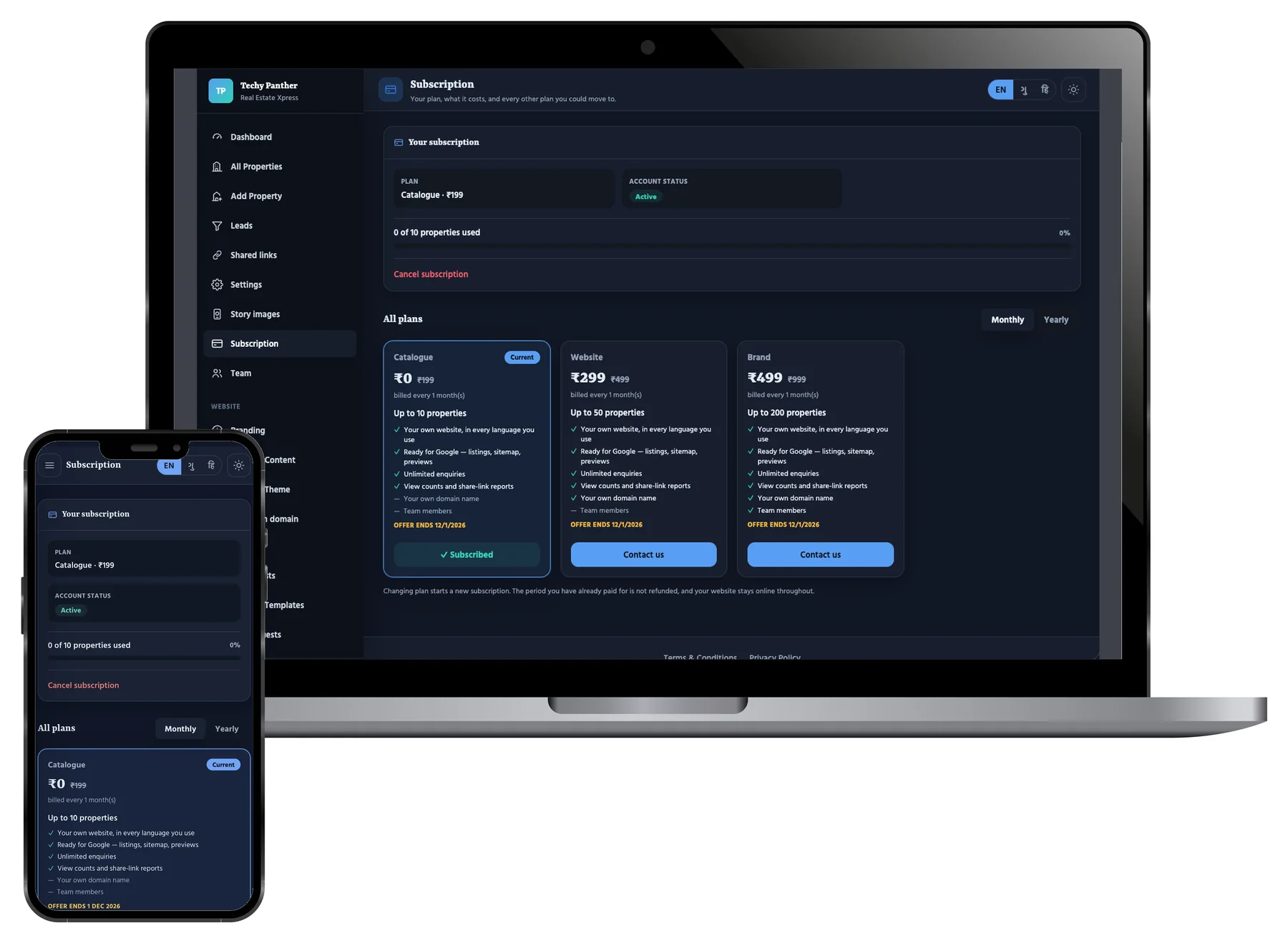
Subscription
Your plan and what you used
Which plan you are on. Is it active. When it renews. How many properties you used out of your limit. Change plan or cancel here.
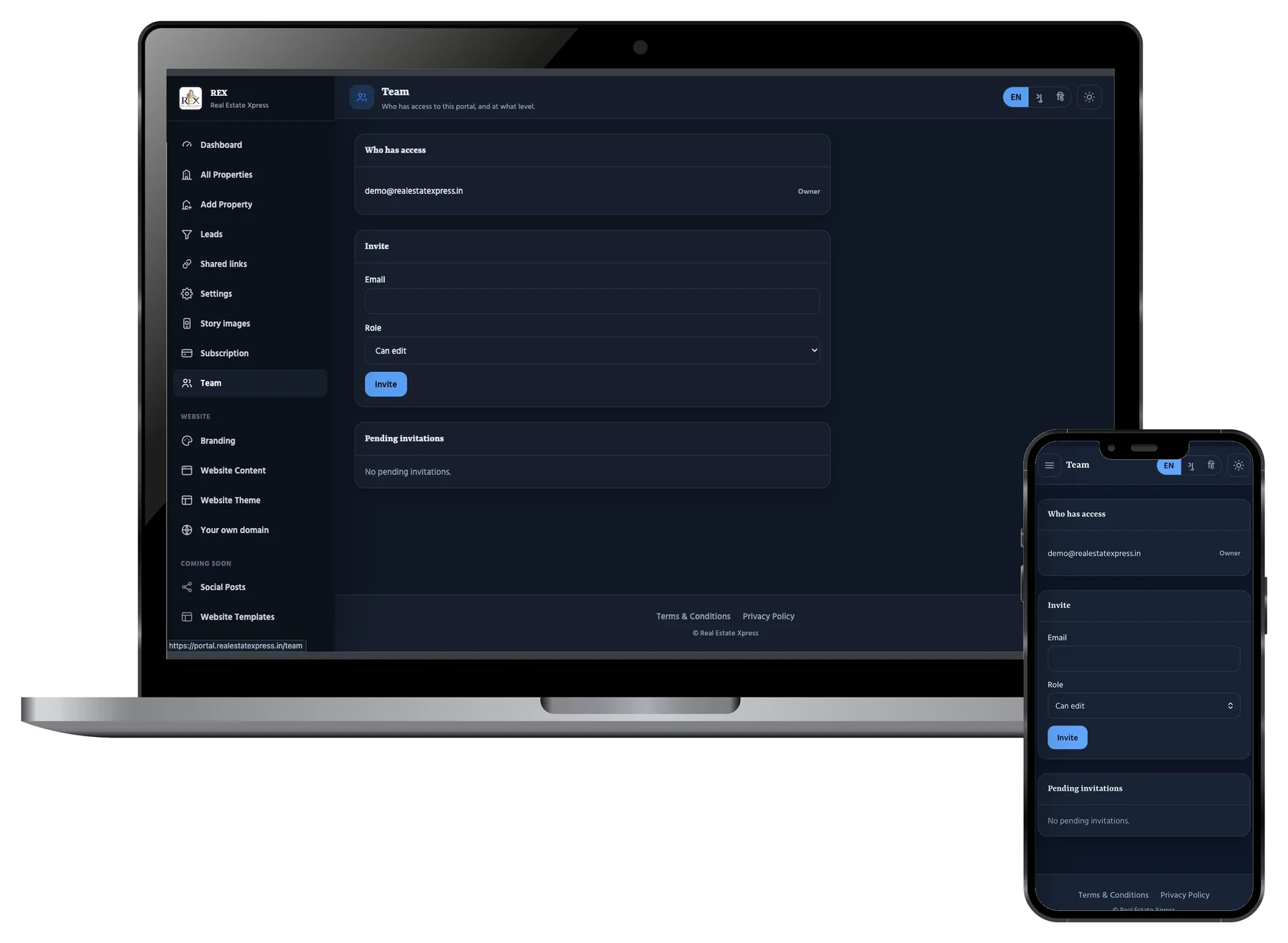
Team
Give your staff their own login
Invite him by his email. Choose Can edit or Read only. He gets his own login, not yours. Remove him any time.
Now see what your buyer gets
The website in your name, the page for each property, and the link that tells you who opened it.